First, you download OpenSSH; choose the correct version, 32 or 64-bit.
Unpack the archive to C:\Program Files\OpenSSH for 64-bit, to C:\Program Files (x86)\OpenSSH for 32-bit
In my case, I use the 64-bit version.
! Be sure only the SYSTEM and Admins group can access this folder.
From the administrative side, we run the install-sshd.ps1 script is located in this program directory and will install the application as a service. I run PowerShell, and here are my actions:
cd "C:\Program Files\OpenSSH"
powershell.exe -ExecutionPolicy Bypass -File install-sshd.ps1
powershell.exe -ExecutionPolicy Bypass -File FixHostFilePermissions.ps1
powershell.exe -ExecutionPolicy Bypass -File FixUserFilePermissions.ps1
Allow inbound TCP port 22
# for Windows 2012 and above
New-NetFirewallRule -Name sshd -DisplayName 'OpenSSH Server' -Enabled True -Direction Inbound -Protocol TCP -Action Allow -LocalPort 22

# for others try to use
netsh advfirewall firewall add rule name=sshd dir=in action=allow protocol=TCP localport=22
Start service
net start sshd
At startup, the host keys will be automatically generated (if missing) in %programdata%\ssh
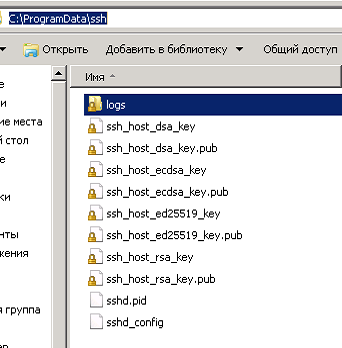
We can enable the autorun of the service at system startup with the command:
Set-Service sshd -StartupType Automatic
You can change the default command shell (after installation, the default is cmd): The absolute path must be specified.
New-ItemProperty -Path "HKLM:\SOFTWARE\OpenSSH" -Name DefaultShell -Value "C:\Windows\System32\WindowsPowerShell\v1.0\powershell.exe" -PropertyType String -Force
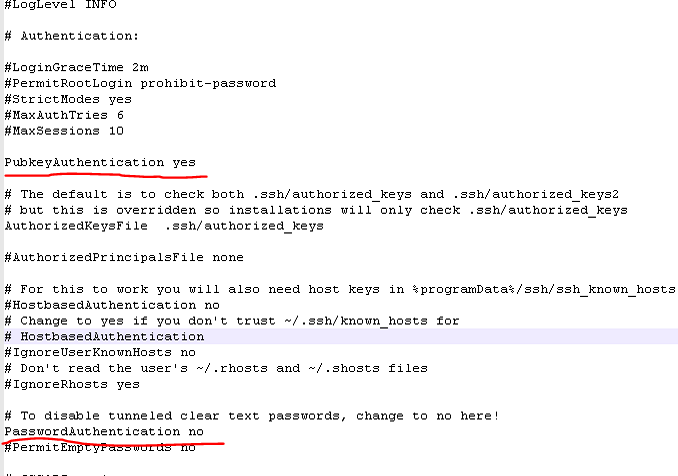
I will use a key to connect and disable password access. To do this, I will edit the file C:\ProgramData\ssh\sshd_config
PasswordAuthentication no
PubkeyAuthentication yes
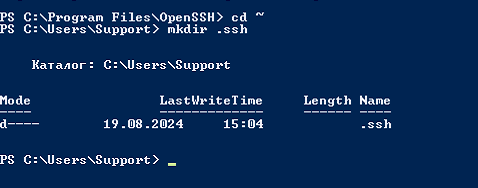
Create the .ssh directory in the user folder, and the authorized_keys file is in it. We record the public keys there. To create a folder .ssh, use the command mkdir .ssh
! It is critical that only the user in whose directory the file is located should have write rights to this file, or you can disable the rights check in the configuration file C:\ProgramData\ssh\sshd_config:
StrictModes no
After any changes are made to the configuration file, it is necessary to restart the sshd service:
net stop sshd
net start sshd
Add your public key in a file authorized_keys
Try to connect to the server. If you can’t connect, use ssh -v username@yourserver on the client’s side, and start the ssh server in debug mode sshd -d. If you got in trouble with a connection using a public key, please visit this page.