The progress utility for tracking command execution on Linux.
Can track process: cp, mv, dd, tar, bsdtar, cat, rsync, scp, grep, fgrep, egrep, cut, sort, md5sum, sha1sum, sha224sum, sha256sum, sha384sum, sha512sum, adb, gzip, gunzip, bzip2, bunzip2, xz, unxz, lzma, unlzma, 7z, 7za, zip, unzip, zcat, bzcat, lzcat, coreutils, split, gpg.
# Debian / Ubuntu Linux:
sudo apt install progress

# RHEL / CentOS Linux:
sudo yum install progress

# Fedora 22+:
sudo dnf install progress

# Alternative
git clone https://github.com/Xfennec/progress.git
cd progress
make
sudo make install
Split a console using tmux or open another session. In the first console, run a command; in the second, run a command progress -w. You will see the progress of the process at the time of running the command.
If you want to see progress in real-time, add ‘& progress -mp $!‘ at the end of the command.
Example:
cp ubuntu-23.04-desktop-amd64.iso /home/user/Downloads/ & progress -mp $!
Some definitions:
& – is the character at the end of the cp command that indicates to run it in the background;
-m – is a progress option that starts a cycle that will continue as long as the monitored processes remain active;
-p – is an option that allows you to specify the process to be tracked;
$! – is a special shell variable representing the PID of the last background process, in this case, the cp command.
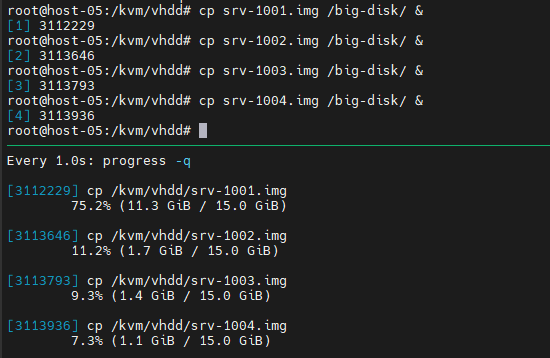
On Linux, commands can be executed in parallel. Using the progress utility, you can track the work of all available commands at once. For example, let’s run three file copying operations and use the watch tool as an argument for which we specify the progress –q command.
Example:
# update time is 2 seconds
watch progress -q
# update time is every 1 second
watch -n 1 progress -q
I prefer to split a console by using tmux. I run watch -n 1 progress -q in the bottom console and run commands at the top console by adding & at the end of each command, and processes still work in the background. Depending on permissions, you have to use sudo.
Example: